

Actions
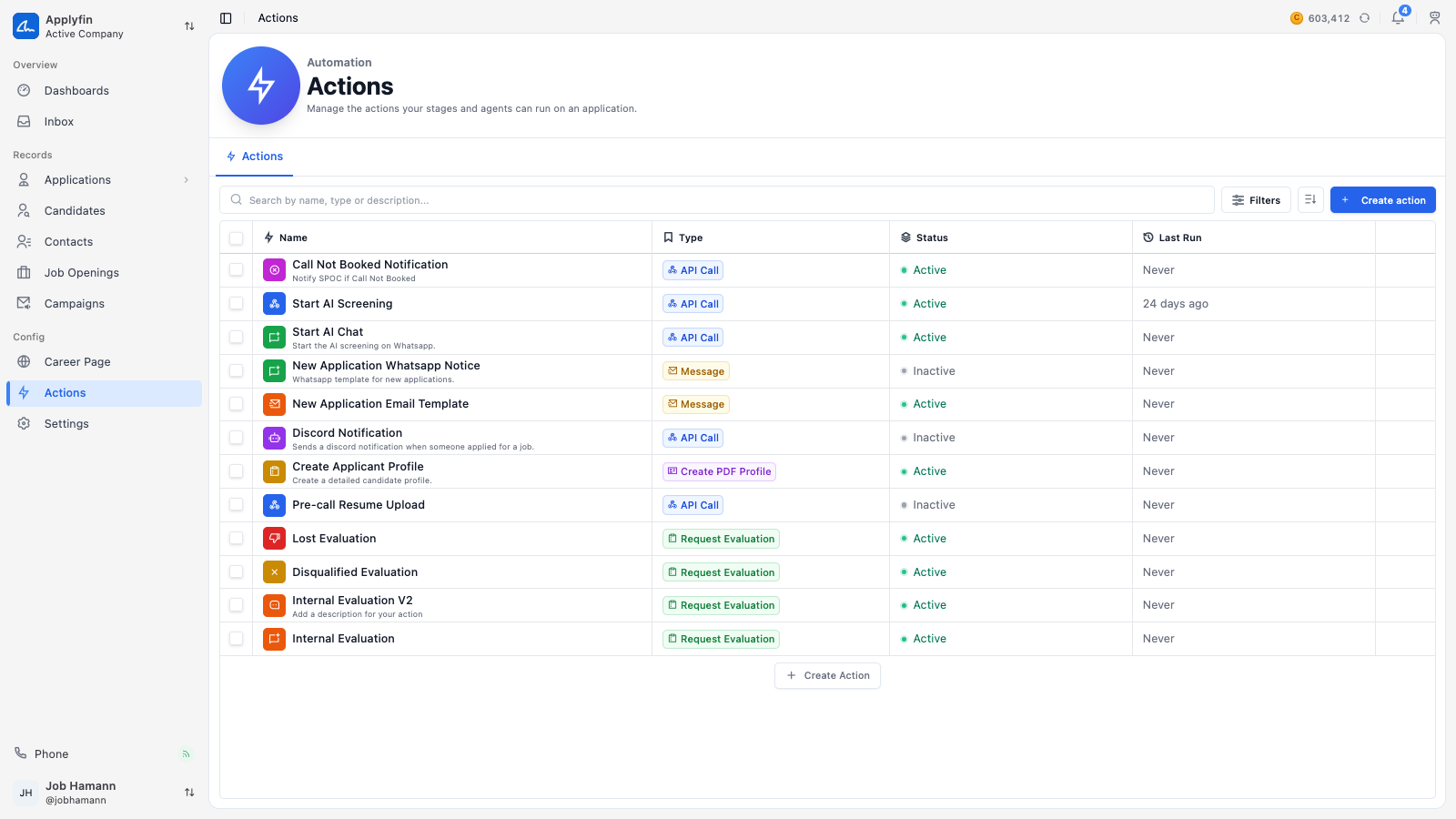
An action is something Applyfin does automatically when an application reaches a stage. Actions are managed under Actions, where each one has its Details and its Configuration. The stages it runs on belong to a department.
An action runs on its own. For example, an evaluation is requested because the application reached a stage, not because a user remembered to ask for it.
Relations
- Stage — an action is bound to a stage and runs when an application reaches it.
- Department — owns the stages an action can be bound to.
- Application — the record an action runs for.
- Inbox — a Message action sends from an inbox, using its templates.
- Evaluation — Request Evaluation is an action type.
- Agent — an agent can run an action, and can be asked to evaluate.
Action types
An action has one of four types. You pick it when you create the action and cannot change it afterwards.
- API Call — send data to another system over the web.
- Message — send a message from one of your inboxes.
- Create PDF Profile — create a PDF with the application's details.
- Request Evaluation — ask someone to evaluate the application.
Creating an action
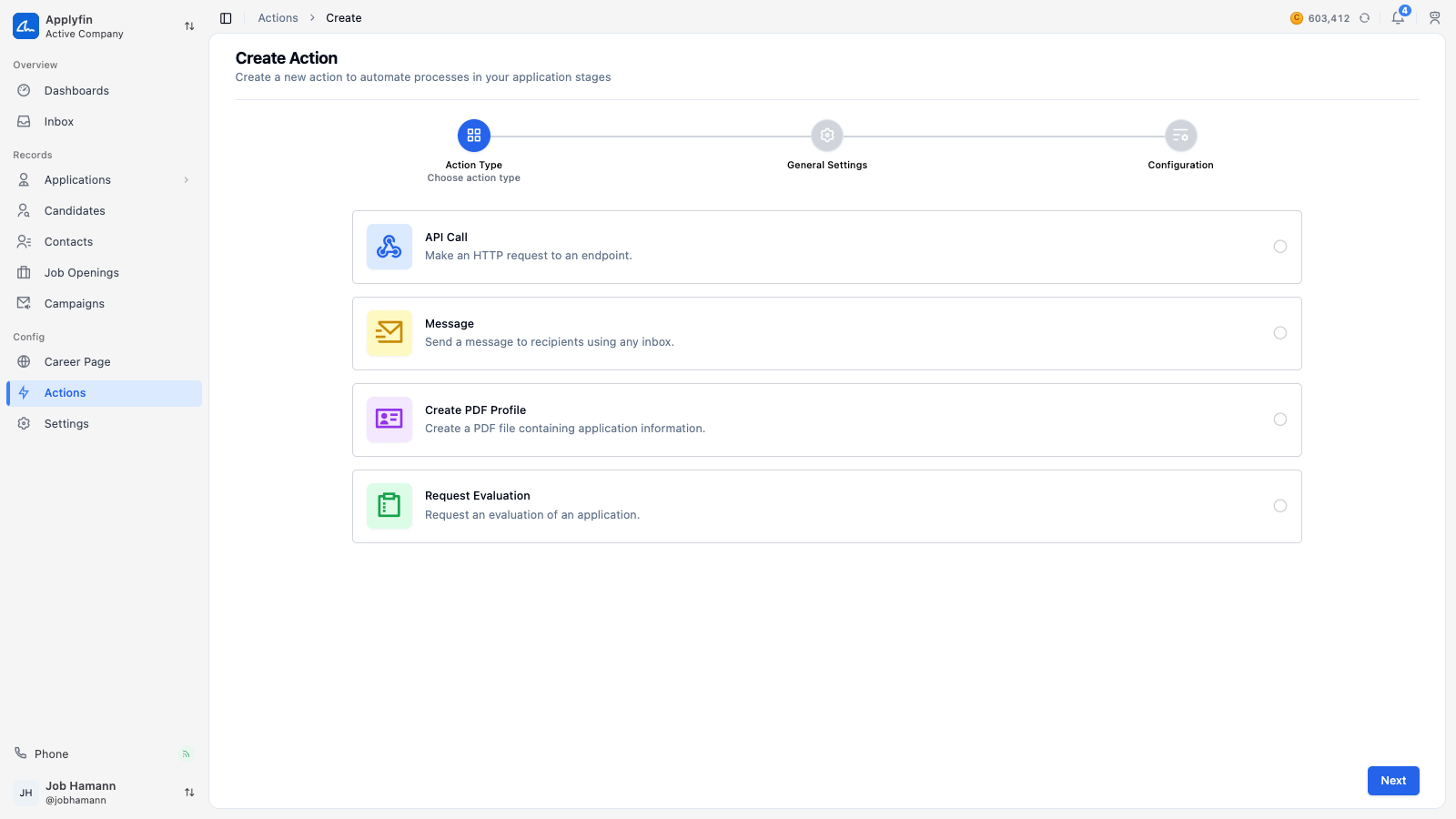
To have something happen automatically at a point in your pipeline, create the action first.
- Open Actions and select Create action.
- On Action Type, select the type.
- Select Next.
- On General Settings, fill in the Name and a Description.
- Pick an Icon and a Color.
- Leave Active on, or turn it off to stop the action running.
- Set Require confirmation if a user should confirm before it runs.
- Select Next.
- On Configuration, fill in what the type asks for.
- Select Submit.
The action appears under Actions. It runs nothing until you bind it to a stage.
Configuring a message
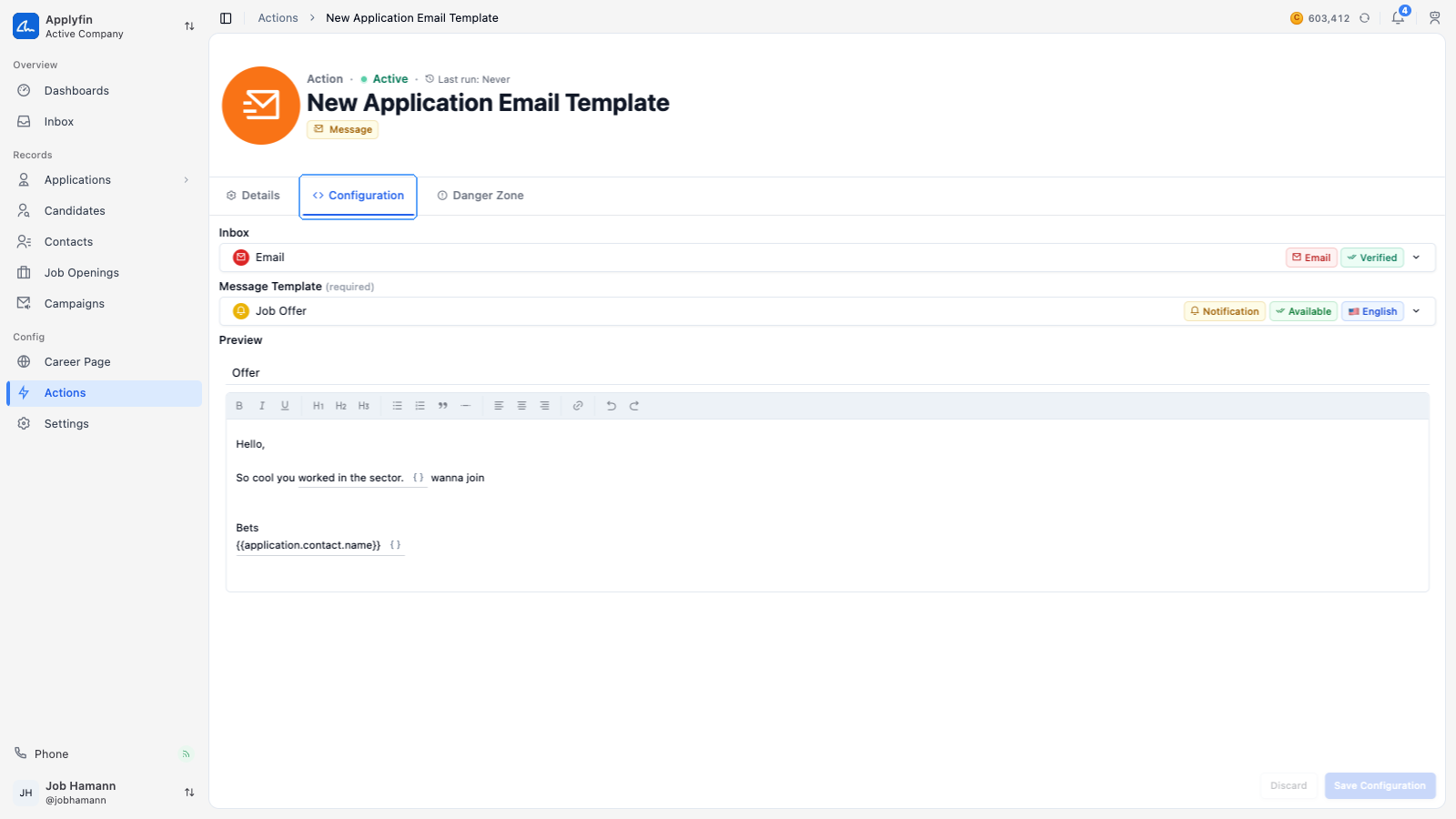
To send a contact a prepared message at a stage, set up a Message action.
- Open Actions, select the action, then select Configuration.
- Pick the Inbox the message sends from.
- Pick the Message Template.
- Fill in the variables under Preview.
- Select Save Configuration.
Configuring a PDF profile
To create a PDF with the application's details, set up a Create PDF Profile action.
- Open Actions, select the action, then select Configuration.
- Pick the Language.
- Fill in the File Name. Applyfin adds
.pdffor you. - Write the Prompt that says what the PDF should contain.
- Select Save Configuration.
Configuring an API call
To tell another system that something happened, set up an API Call action.
- Open Actions, select the action, then select Configuration.
- Pick the Method: POST, GET, PUT, PATCH or DELETE.
- Fill in the URL.
- Add any Headers, as a key and a value.
- Add any Credentials the headers need.
- Write the Body as JSON.
- Select Save Configuration.
${NAME} as the value. Credentials are
stored encrypted and never shown again.Configuring an evaluation
Requesting an evaluation is covered under Requesting an evaluation.
Binding to a stage
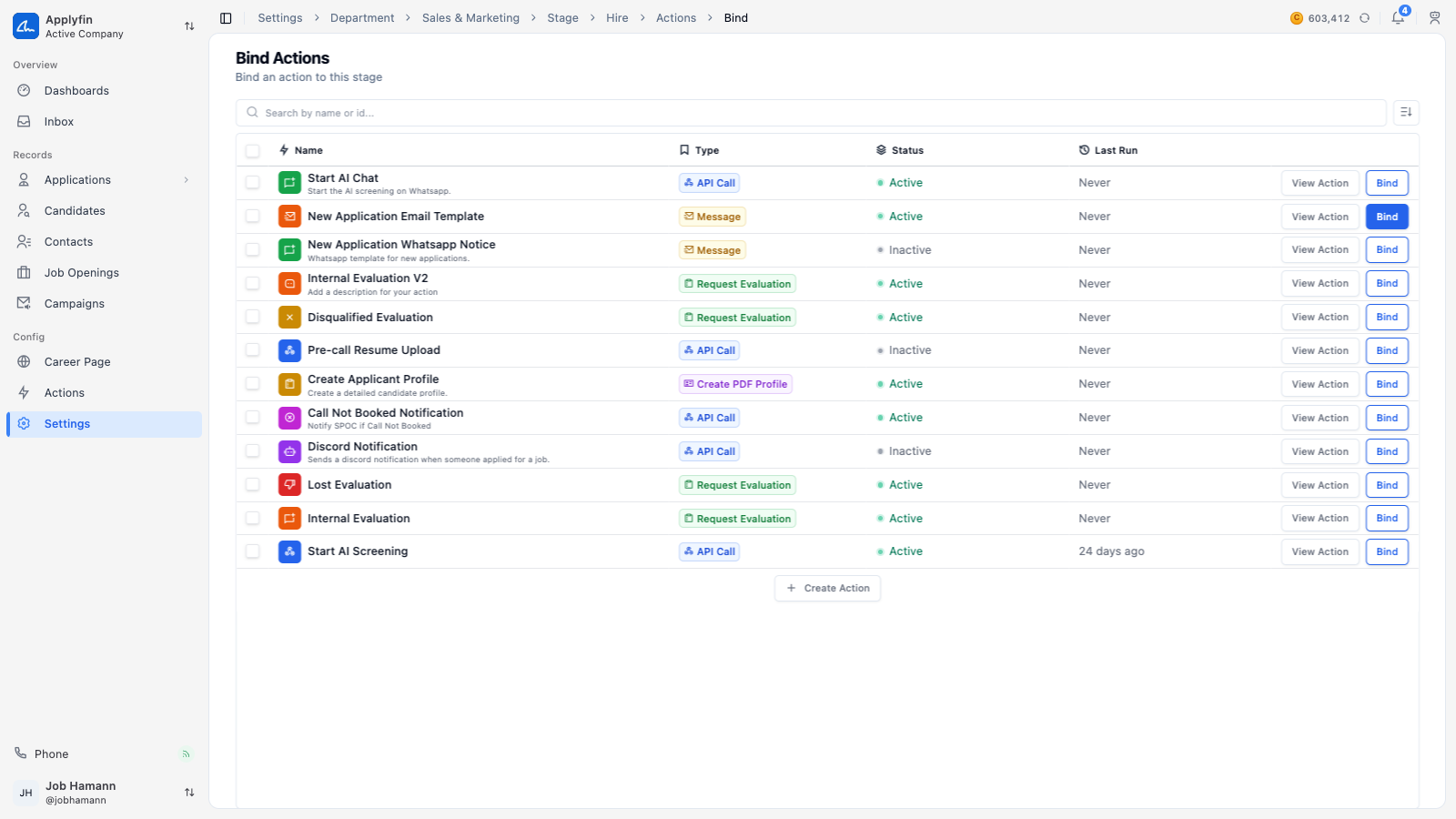
To decide when an action runs, bind it to a stage.
- Open Settings > Departments and select the department.
- Select Stages and select the stage.
- Select Actions.
- Select Bind Action.
- Find the action by name or id.
- Select Bind on its row.
- Confirm on Bind Action.
The action now runs whenever an application reaches this stage.
To stop it, select Unbind on the action's row and confirm. Tick several to unbind them at once.
Finding an action
The list shows the Name, the Type, the Status and the Last Run. Created can be added.
A status is Active, Inactive, Warning or Error. An action that has never run reads Never under Last Run.
To find an action in the list, filter it.
- Open Actions.
- Search by name, type or description.
- Filter on Type, or sort by Name or Updated at.
Confirming an action
When a user triggers an action with Require confirmation, Applyfin opens a dialog with the name of the action and the application. Select Confirm to let it run, or Dismiss to stop it.