

AI Assistant
The AI assistant writes and edits text inside the editor you have open. It is available when you compose an email, build a message template, write a job opening description, and reply on WhatsApp or LinkedIn.
The assistant is not an agent. An agent works inside an inbox and handles a conversation on its own. The assistant only works in the editor you have open, and only when you ask it to.
Relations
- Agent — works on its own inside an inbox; the assistant does not.
- Conversation — the assistant helps you draft a reply.
- Message template — the assistant helps you write the body.
- Job opening — the assistant helps you write the description.
Asking the assistant
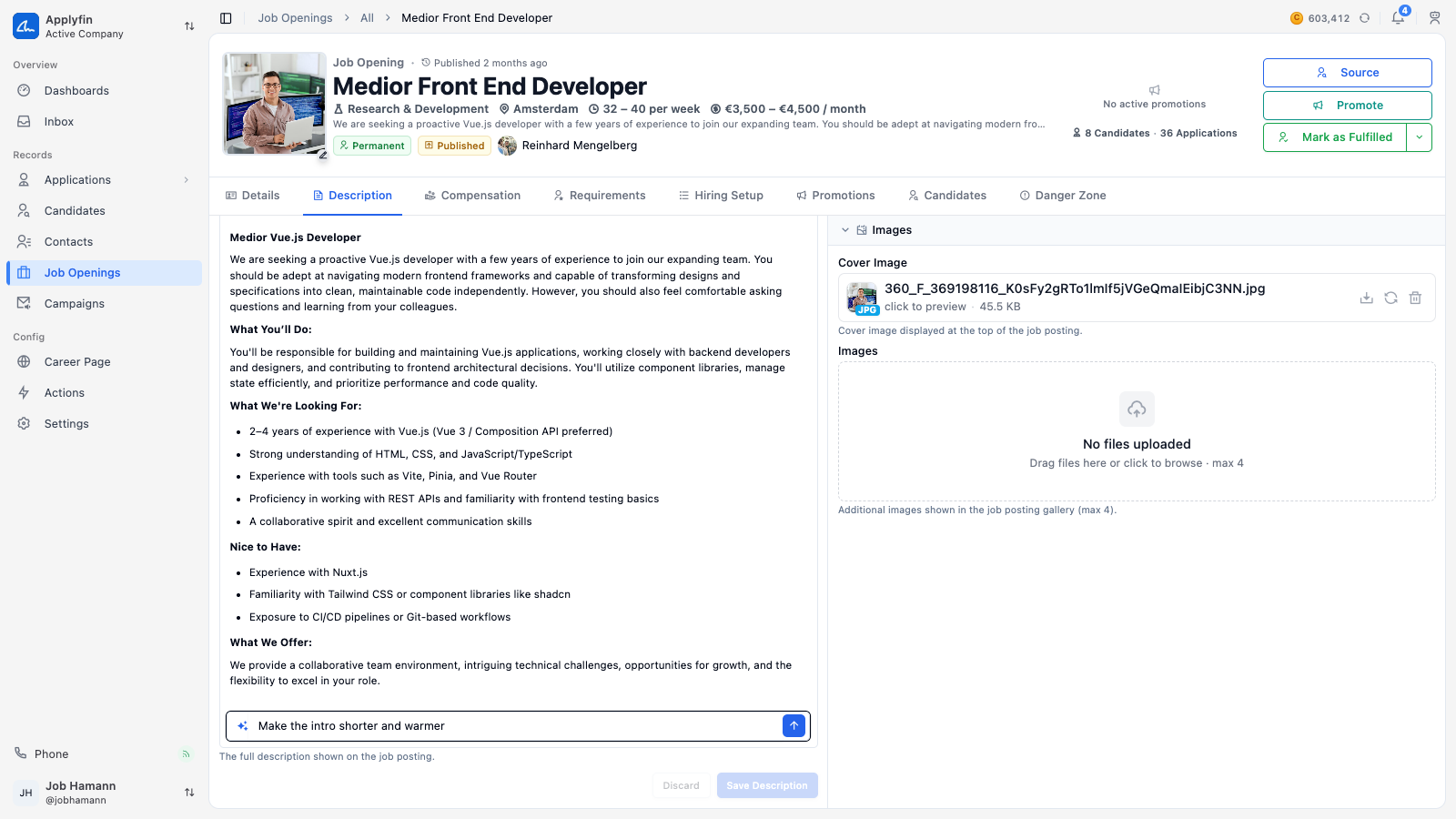
To have the assistant write or change something, open it in the editor.
- Put your cursor in the editor.
- Select the sparkle icon, press
⌘J, or type/and pick Ask AI. - Write what you want in Ask AI to write or edit….
- Press enter.
The text appears in the editor while it is being written.
/.What to ask the assistant
The assistant works on the text in front of you. Some things it does well:
- Shorten — "Make the intro shorter and warmer."
- Rewrite in another tone — "Make this reply more formal."
- Translate — "Translate the description to English."
- Draft from notes — paste bullet points and ask for a full job description.
- Fix the structure — "Turn the requirements into a bulleted list."
- Fill a template — "Write a rejection email that thanks the applicant and invites them to apply again."
Accepting a suggestion
Once the text is finished, three buttons appear.
- Accept — keeps the text.
- Reject — puts back what was there before.
- Refine response — lets you ask for a change to the text. The box then reads Refine the response….
Select Stop to stop the assistant while it is still writing. Pressing Escape closes the assistant and removes anything you have not accepted.