

Comments
A comment is an internal note left on a record. Comments appear in the record's Activity, where users can reply to them, react to them, mention each other and call an agent.
A comment keeps a decision on the record it is about. The reason a user gave for moving an application forward stays on the application, where the next user can read it.
Relations
- Contact — comments are left on the contact.
- Application — comments are left on the application.
- Talent Pool member: a comment on a member is saved on the contact behind it.
- Activity — comments appear in the record's activity.
- User — users can be mentioned, and you can only edit your own comments.
- Agent — your hosted agents can be mentioned. A mention calls the agent on the comment.
Writing a comment
To record why you decided something, write a comment on the record. The editor is at the bottom of the record's Activity column. Comments are internal: the contact never sees them.
- Open the contact or the application.
- Select Details.
- Write in the editor under Activity.
- Select Add Comment.
The comment appears at the top of the activity, where other users can reply and react.
Editing a comment
To change or remove a comment, edit or delete it. You can only edit and delete your own.
- Select More actions on the comment.
- Select Edit, change the text and select Update.
To remove one, select More actions and then Delete, and confirm on Delete comment?.
/ to see the options.Replying to a comment
To answer another user's comment, reply to it.
- Select the reply icon on the comment.
- Write the reply.
- Select Reply.
The reply appears under the comment. Select Show N replies to open a closed thread, and Hide N replies to close it again.
Reacting to a comment
To answer a comment without writing one, react to it.
- Select the emoji icon on the comment.
- Search for an emoji, or pick one from Smileys & people, Gestures, Hearts, Celebration or Objects & symbols.
The reaction appears under the comment with a count. Select it again to take your reaction back.
Mentioning a user
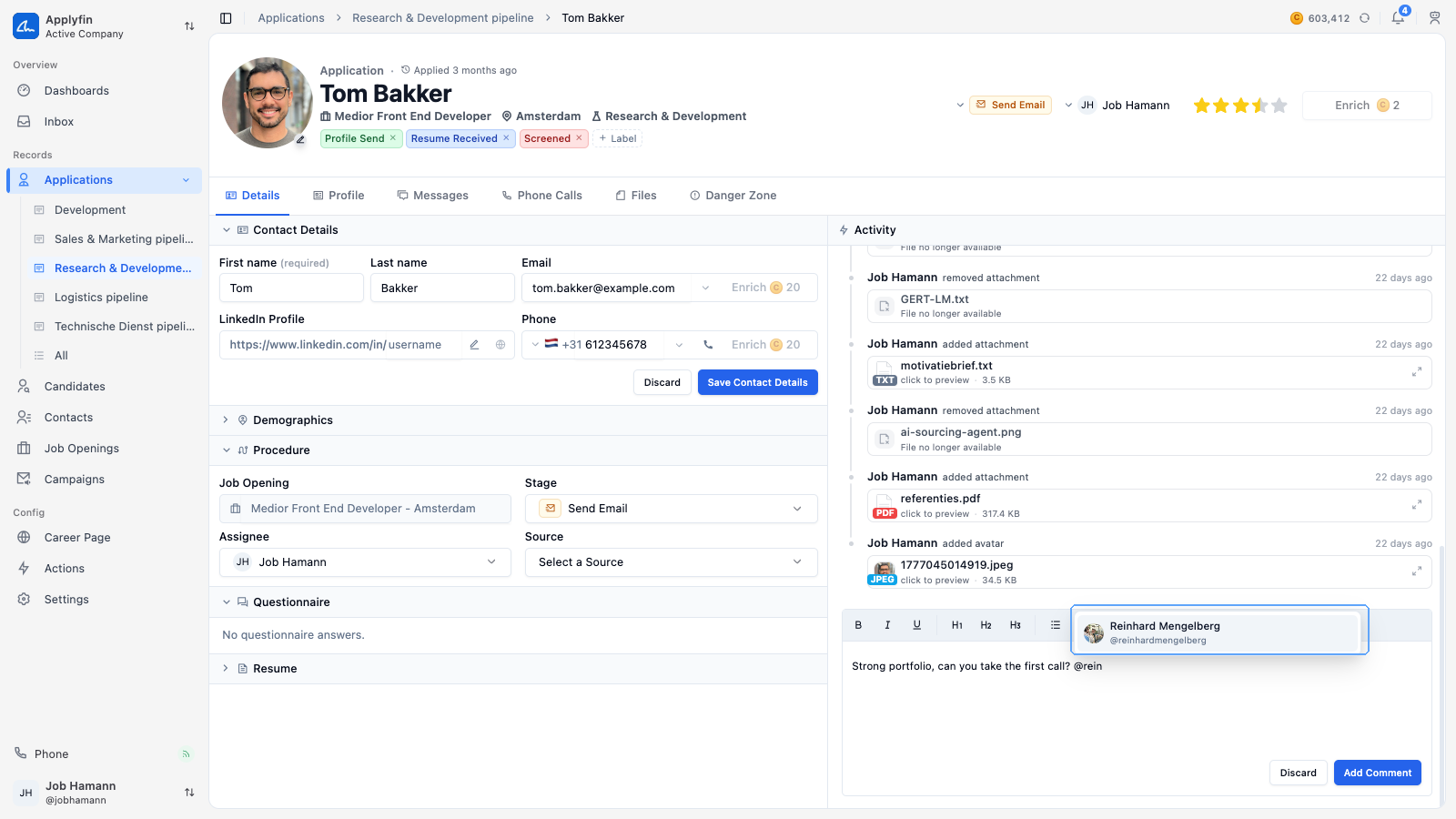
To bring a comment to a user's attention, mention them. Typing @ in a comment
or a reply opens a list of the users in your company.
- Write a comment or a reply.
- Type
@. - Search by name or username.
- Select the user.
Their name is inserted into the comment.
Calling an agent
To have an agent act on a record, mention it in a comment the same way you mention a user. The picker lists your agents after the users, and the chip an agent mention leaves has a different colour than a user's.
- Write a comment or a reply that tells the agent what to do.
- Type
@and select the agent. - Post the comment.
The agent is called with the comment and does what it has been told, on the record the comment was made about.