

Evaluations
An evaluation is a form a user fills in about an application. It sits in the application's Evaluations section, and it is built from an evaluation template you set up under Settings > Evaluations.
An evaluation records why a user moved someone forward, on the application itself instead of in a message thread. It sits next to the AI assessment, which scores the profile automatically.
Relations
- Application — every evaluation belongs to one application, and an application can have several.
- Evaluation template — the questions an evaluation is built from.
- Conversion — a template can be linked to a conversion, so the answers show up in the funnel on your dashboards.
- Action — Request Evaluation sends an evaluation to a user, an agent, the contact or an external evaluator.
Creating a template
An evaluation template is the set of questions an evaluation is built from. It is created under Settings > Evaluations, in two steps: General and Questions.
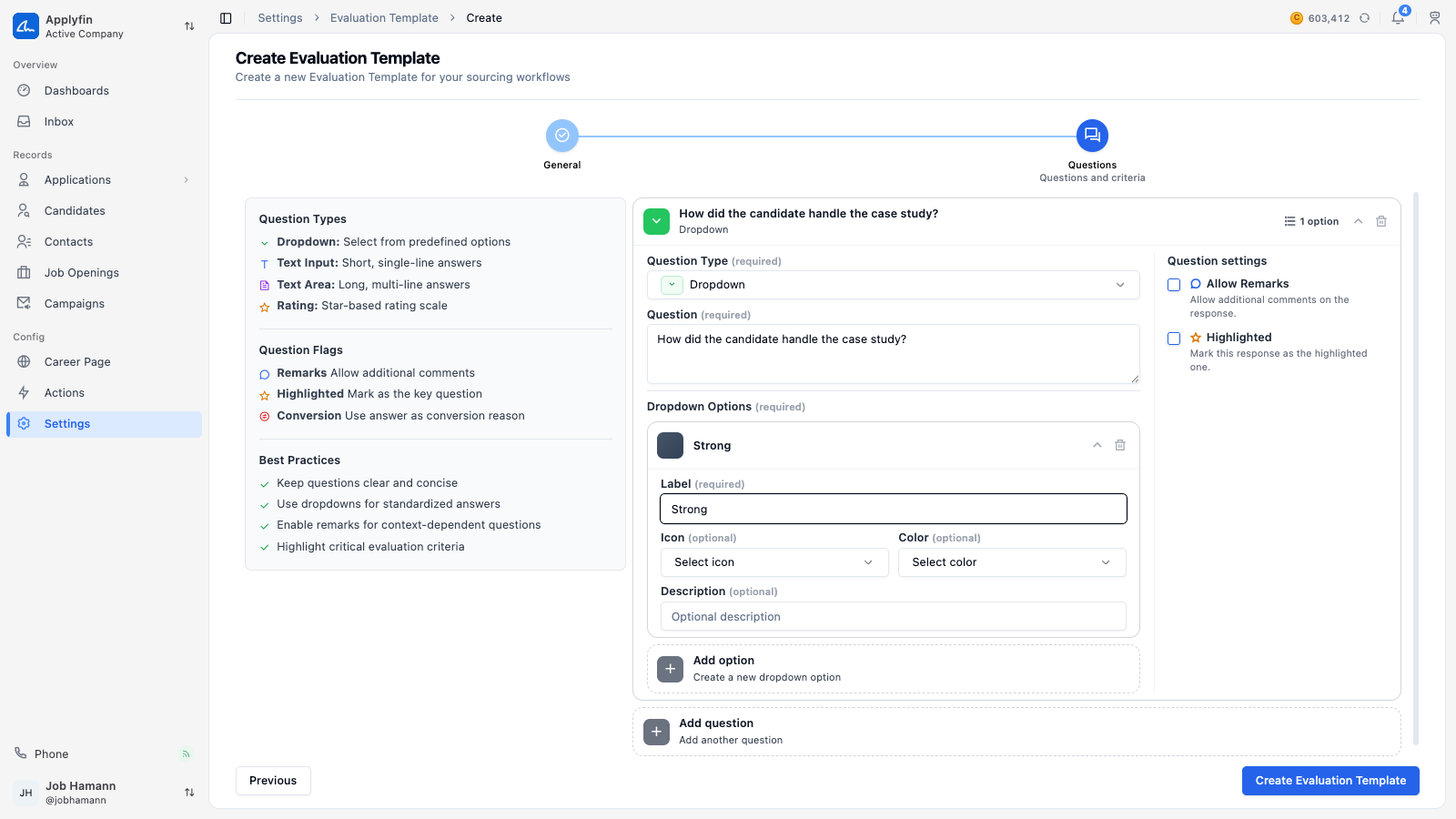
To have every user answer the same questions, build a template first.
- Open Settings > Evaluations and select Create New.
- On General, fill in the Name and a Description.
- Pick an Icon and a Color.
- Set Highlighted if evaluations made with this template should show in highlighted areas.
- Pick a Conversion if the answers should count for one.
- Select Next.
- On Questions, select Add question.
- Pick the Question Type and write the Question.
- Select Create Evaluation Template.
The template now appears under Settings > Evaluations and can be picked when a user creates an evaluation.
Question types
- Dropdown — select from options.
- Rating — a star rating.
- Text Input — a short text answer.
- Text Area — a long text answer.
A Dropdown question asks for Dropdown Options. Each option carries a Label, and optionally an Icon, a Color and a Description.
Question settings
Each question has three settings.
- Allow Remarks — allow additional comments on the response. Offered on Dropdown and Rating questions only.
- Highlighted — mark this response as the highlighted one.
- Conversion Reason — mark this response as the conversion reason.
Creating an evaluation
An evaluation is created from the Evaluations section on an application. You pick a template, then answer its questions.
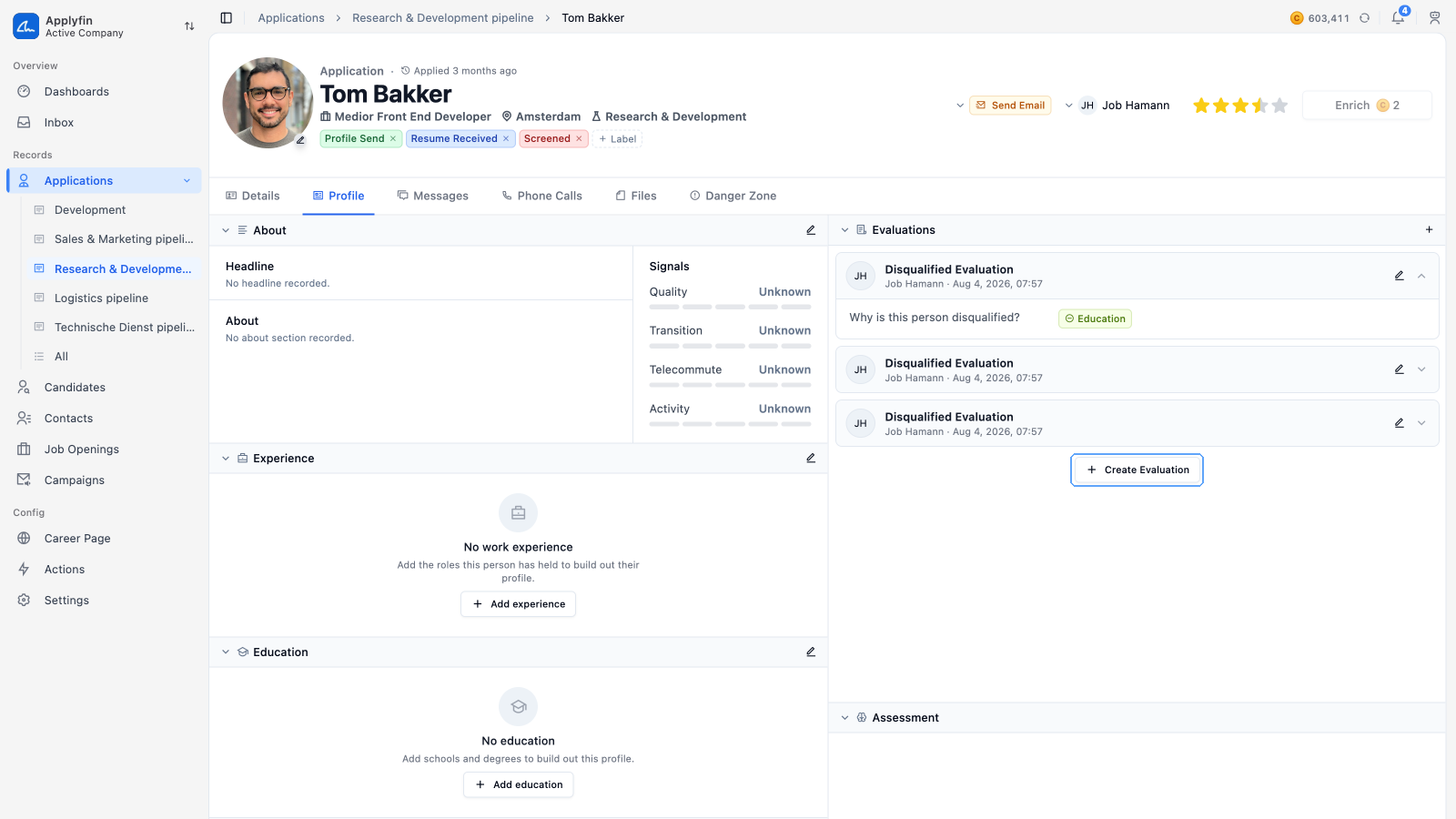
To record what you decided about an application, create an evaluation on it.
- Open the application.
- In the Evaluations section, select Create Evaluation.
- On Select Template, pick the evaluation template.
- Select Next.
- On Fill Responses, answer the questions.
- Add remarks where the question allows them.
- Select Create Evaluation.
The evaluation now appears in the Evaluations section on the application.
Editing an evaluation
To change what a user recorded, open the evaluation and edit it.
- Open the application.
- Select the evaluation in the Evaluations section.
- Select Edit to change a response, then select Save.
Requesting an evaluation
An evaluation is requested by an action, not by a button on the application. Request Evaluation is an action type. The request goes out when an application reaches the stage the action is bound to.
To have Applyfin ask for an evaluation at a point in your pipeline, set up the action and bind it to a stage.
- Open Actions and create an action of type Request Evaluation.
- Pick the Evaluation Template.
- Pick the Evaluator.
- Pick the Strategy.
- For an external evaluator, fill in the External evaluator email.
- Turn on Enable custom message if you want a message sent with the request, then pick the Inbox and the Message Template.
- Attach the action to a stage.
The request now goes out whenever an application reaches that stage.
Evaluators
- User — assign to a specific user.
- Agent — assign to an automation agent.
- Contact — assign to the application contact.
- External — assign to an external evaluator.
Strategies
- Causer — the user or agent whose action triggered it.
- Related — the user linked to the application, such as its assignee.
- Dedicated — always the same evaluator, which you pick.
What the evaluator sees
A user or an agent gets a dialog headed Evaluation Requested, with the questions to answer and a Submit button.
An external evaluator gets a page headed Submit your evaluation, with the template's questions and a Submit evaluation button. They need no Applyfin account.