

Locations
A location is a place you hire in. It is set up under Settings > Locations, and it is picked on a job opening so visitors can see where the role is and whether it is On Site, Remote or Hybrid.
A user is assigned the locations they work in. A recruiter assigned to one city does not see the applications for another city.
Relations
- Job opening — every job opening is placed at a location.
- User — a user is assigned the locations they work in.
- Career page — visitors read the location on the role.
Creating the location
A location is created under Settings > Locations. What it asks for depends on the Type you pick. A remote location only needs a country.
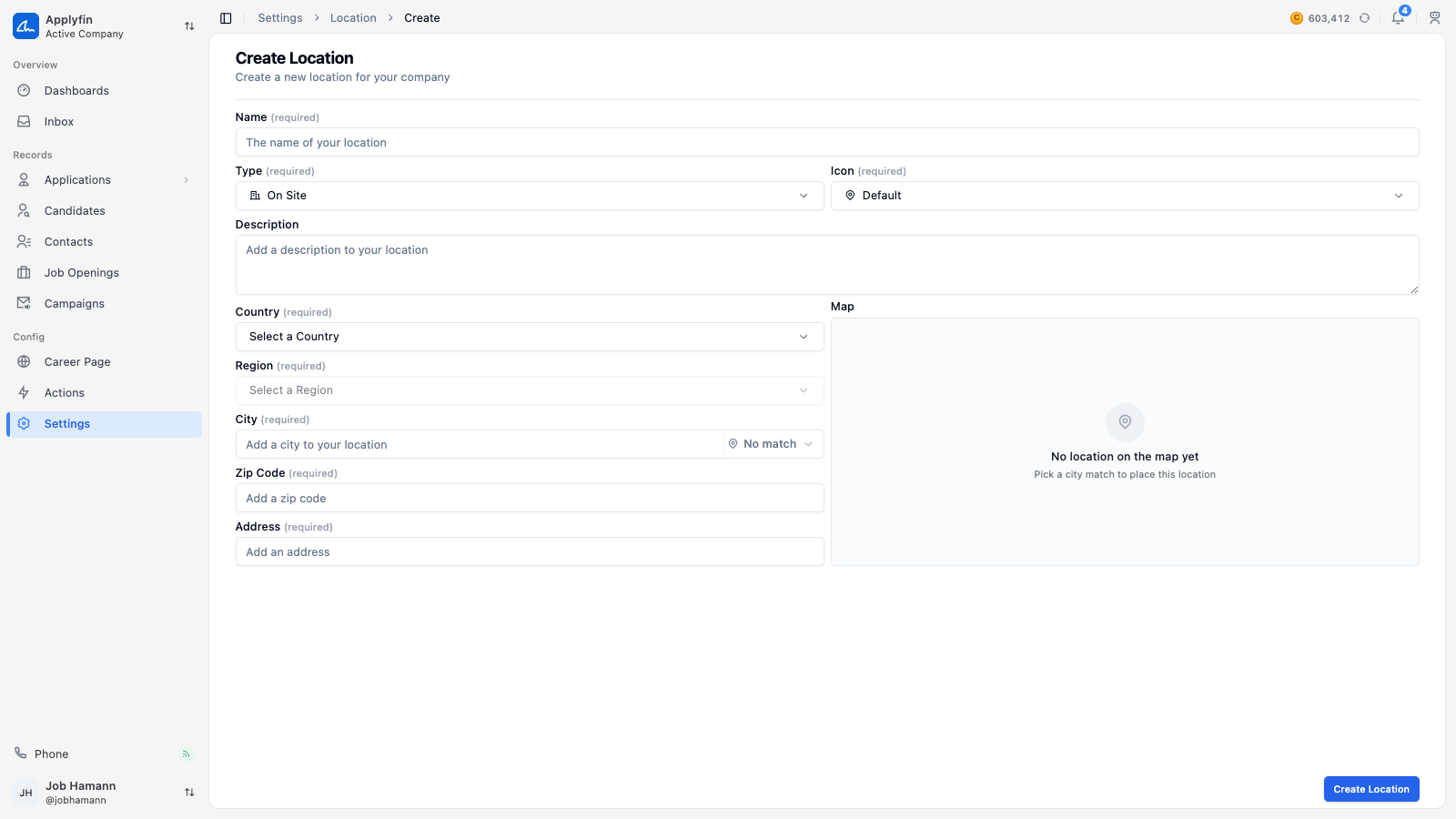
To place a job opening somewhere, create the location first.
- Open Settings > Locations and select Create New.
- Fill in the Name.
- Pick a Type: On Site, Remote or Hybrid.
- Pick an Icon, and write a Description if you want one.
- Pick the Country.
- For On Site and Hybrid, pick the Region and the City, then fill in the Zip Code and the Address.
- Select Create Location.
The location now appears under Settings > Locations, and it can be picked on a job opening.
Assigning a user
A user is assigned to the locations they work in, on the location's Users tab. The assignment decides which roles and applications that user sees.
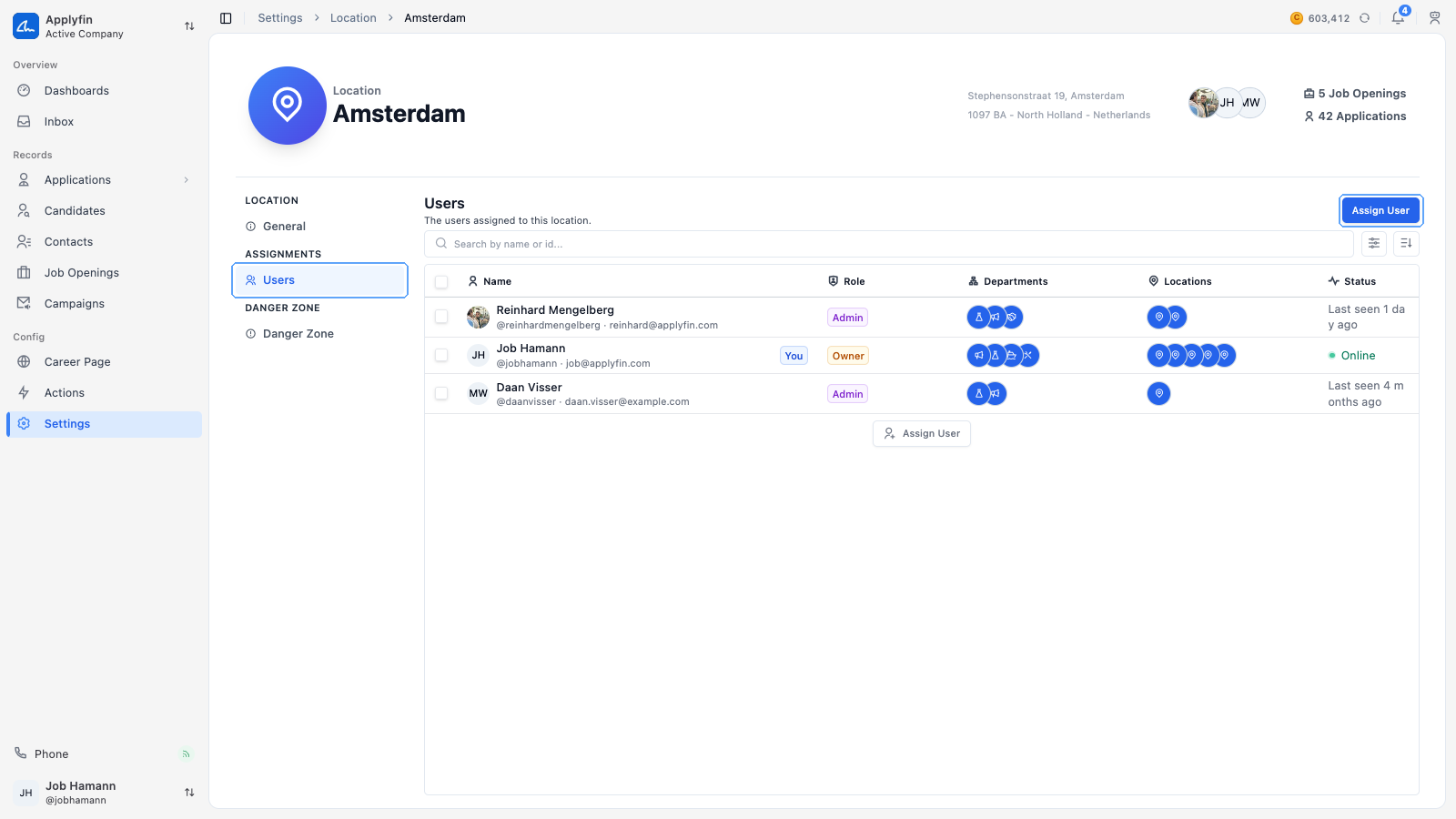
To give a user access to a location's roles and applications, assign them to it.
- Open Settings > Locations and select the location.
- Select Users.
- Select Assign User.
- Find the user, by name or by id.
- Confirm on Assign User.
The user now appears on the Users tab and works in this location.
Unassigning a user
To stop a user working in a location, unassign them.
- Open Settings > Locations, select the location, then select Users.
- Select Unassign on the user's row.
- Confirm on Unassign User.
The user no longer works in this location.