
Promotions
A promotion belongs to one job opening. It is a listing on a job board or another channel, bought from the Promotions tab of the job opening and paid from the company balance.
Because a promotion belongs to one job opening, its results are shown for that role. That is how you compare what a listing cost with the applications it brought in.
Relations
- Job opening — a promotion belongs to exactly one.
- Feed — a promotion can run through a feed instead of as its own listing.
- Balance — promotions are paid from it.
- Application — where an application came from can be a promotion.
- Dashboard — the results of a promotion are shown there.
Ordering a promotion
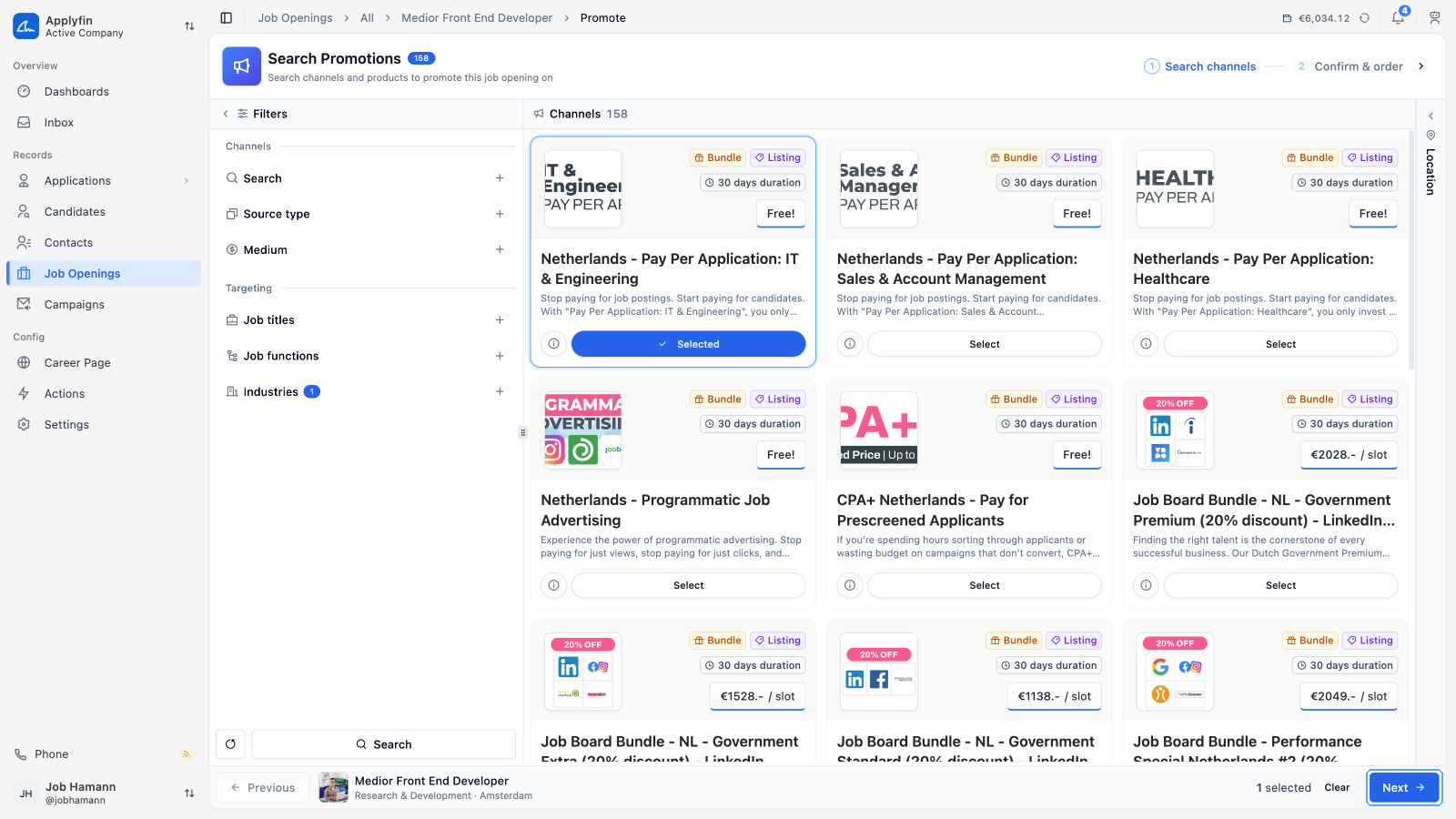
Promoting a job opening buys it a listing on a job board or another channel. It takes two steps, Search channels and Confirm & order, on the job opening's Promotions tab.
To get applications from people who are not on your career page, order a promotion.
- Open the job opening and select Promotions.
- Select Promote.
- Filter the channels with Search, Source type and Medium.
- Filter the audience with Job titles, Job functions and Industries.
- Set the Country, the Region and the City, with a radius if you want one.
- Select Search.
- Pick the channels you want and select Next.
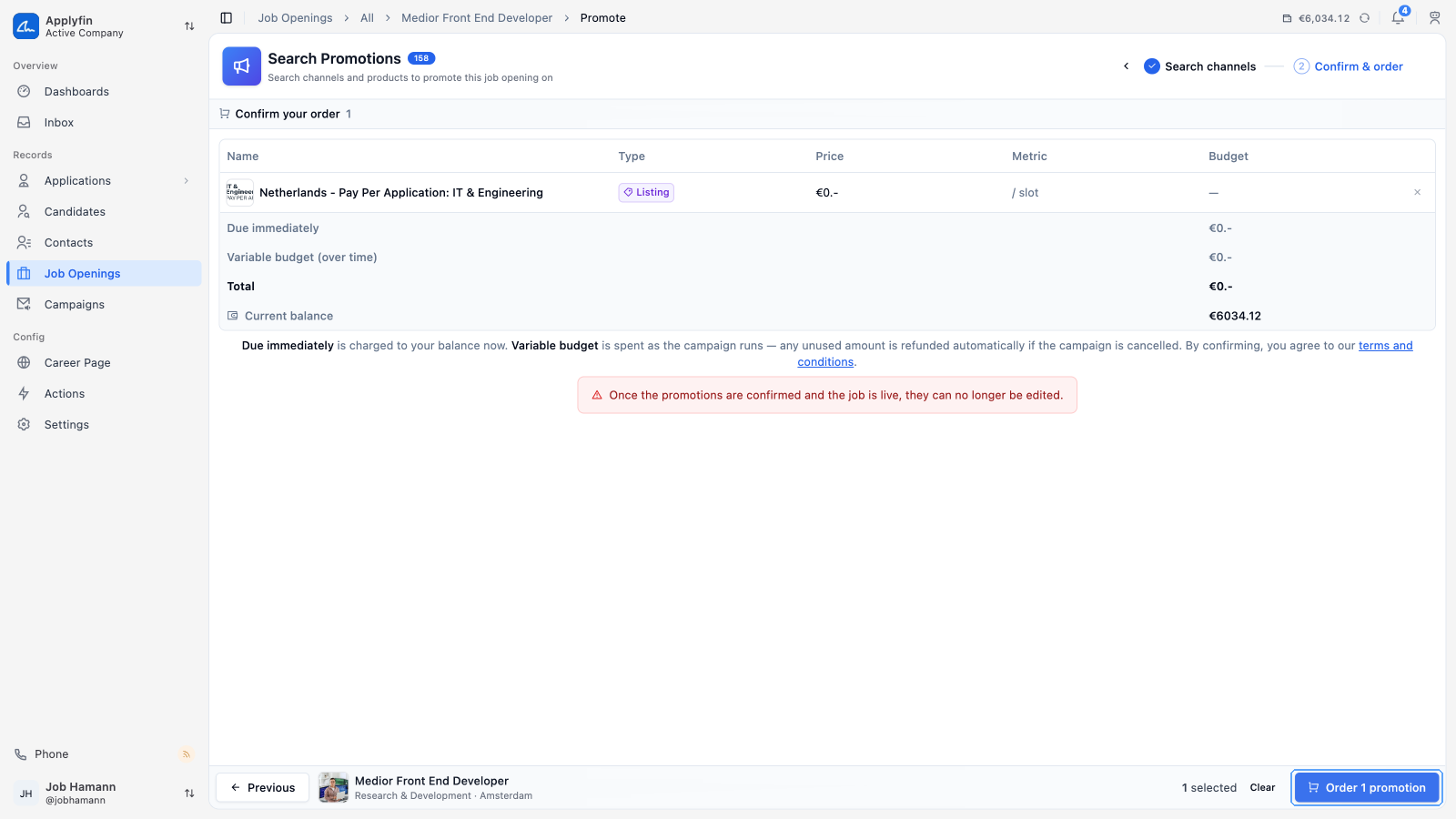
- Check Confirm your order and select Order for the promotions listed.
You are returned to the job opening, and the promotion appears on its Promotions tab.
The promotions list
The Promotions tab on a job opening shows the Promotable, the Status, the Start date and End date, the Type, the Price, the Budget and the Clicks.
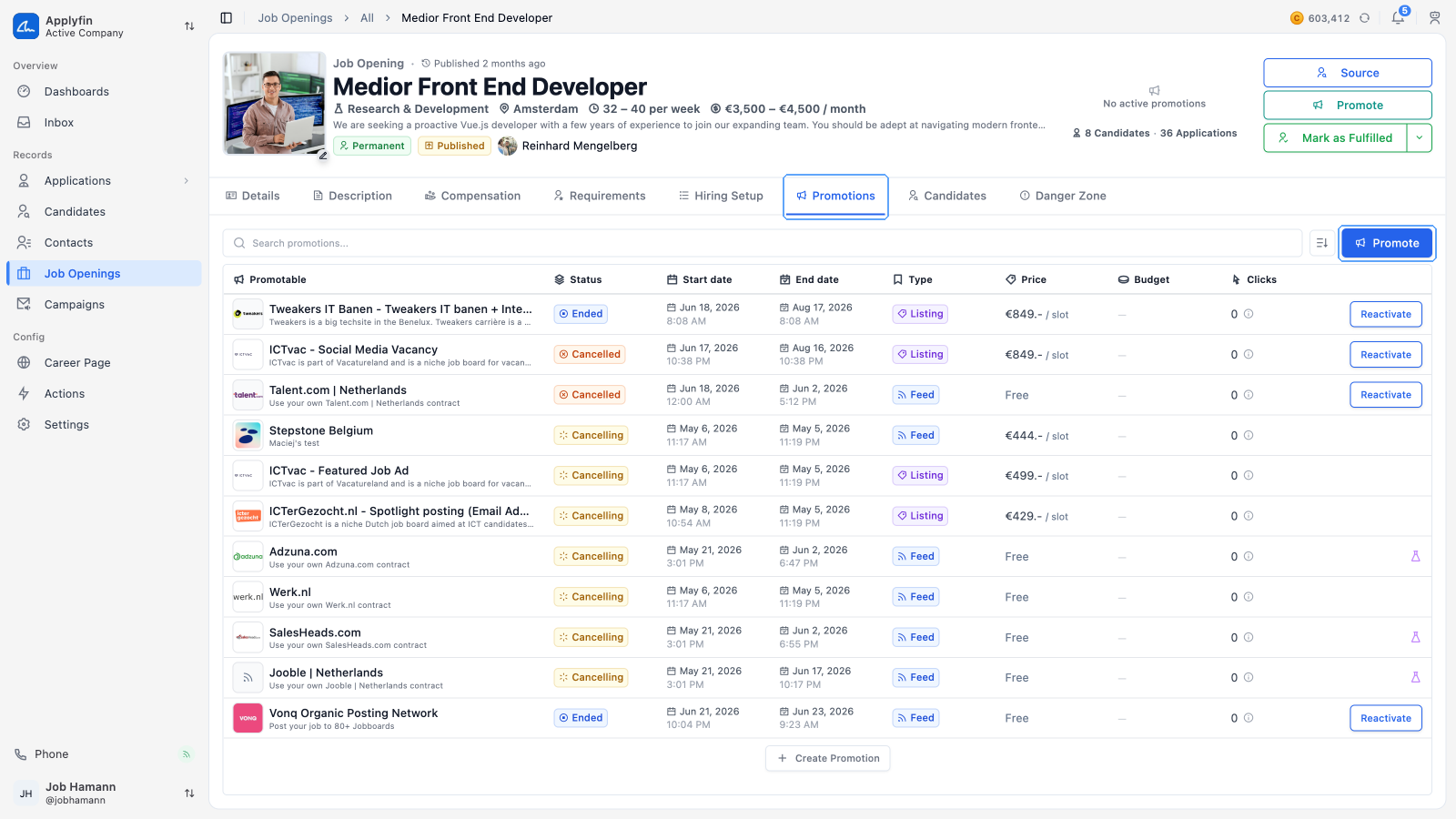
Type is either Feed or Listing. Feed means the promotion runs through one of your feeds. Listing means it was bought as its own listing.
Statuses
A promotion has one of these statuses.
- Draft — not yet ordered.
- Pending — ordered, and being processed by the channel.
- Active — live on the channel.
- Failed — the channel refused it. See the error beside the status.
- Cancelling and Cancelled — stopped before it went live.
- Ending and Ended — stopped after it went live, or run to its end date.
Cancelling a promotion
To stop a promotion that has not gone live, cancel it.
- Open the job opening and select Promotions.
- Select Cancel on the promotion.
- Read the reimbursement notice in the dialog.
- Confirm on Cancel Promotion.
Ending a promotion
To take a live promotion down early, end it.
- Open the job opening and select Promotions.
- Select End on the promotion.
- Confirm on End Promotion.
The job opening is no longer promoted on that channel.
Retrying a failed promotion
To send a failed promotion to the channel again, retry it.
- Open the job opening and select Promotions.
- Select Retry on the failed promotion.
- Fill in any fields the channel asks for.
- Confirm on Retry Promotion.
Reactivating a promotion
To run a cancelled or ended promotion again, reactivate it.
- Open the job opening and select Promotions.
- Select Reactivate on the promotion.
- On Overview, check the costs.
- Set the budget.
- On Confirm & Order, check the totals.
- Select Confirm & Reactivate.
The promotion goes back to the channel and the job opening is promoted again.
Reading the price
The order summary shows two amounts.
- Due immediately — charged to your balance now.
- Variable budget (over time) — spent while the promotion runs. Any unused amount is refunded automatically if you cancel it.
Your Current balance is shown above the total, so you can see whether you can afford the order before you confirm.
Reading the clicks
The Clicks column has an info icon. Hover over it to see Visits, Avg actions, Avg visit length, Bounces, Converted visits and Max actions, then a Goals section with the conversions for each goal.
A promotion without results yet reads n/a.