

Phone Calls
Applyfin has a built-in phone that works in the browser. It connects to your own phone system (PBX), set up under Settings > Phone, and each user gets their own extension on their Phone tab.
A call is saved on the record it was made from. Contacts, talent pool members and applications each have a Phone Calls tab, so you find a call next to the messages and the evaluations, not in a separate log.
Relations
- Contact — the calls made to and from the person.
- Talent Pool member: the same calls as the contact behind it.
- Application — the Phone Calls tab on the application.
- User — a call is made from a user's extension.
- Label — phone calls have their own labels.
Connecting your PBX
To let anyone call from Applyfin, connect your phone system first.
- Open Settings > Phone.
- Turn on Enable Phone.
- Set the Connection to SIP.
- Pick the Environment.
- Fill in the PBX Server IP / FQDN and the PBX WebSocket URL.
- Set the Country Code and the NSN digits.
- Select Save Phone Settings.
The softphone becomes available to users who have an extension.
Setting up a user
To let one user make and take calls, set up their extension.
- Open Settings > Users and select the user.
- Select Phone.
- Turn on Enable Phone.
- Fill in the Extension and the Secret.
- Select Save Phone Settings.
Phone appears in that user's sidebar and connects to the phone system.
Making a call
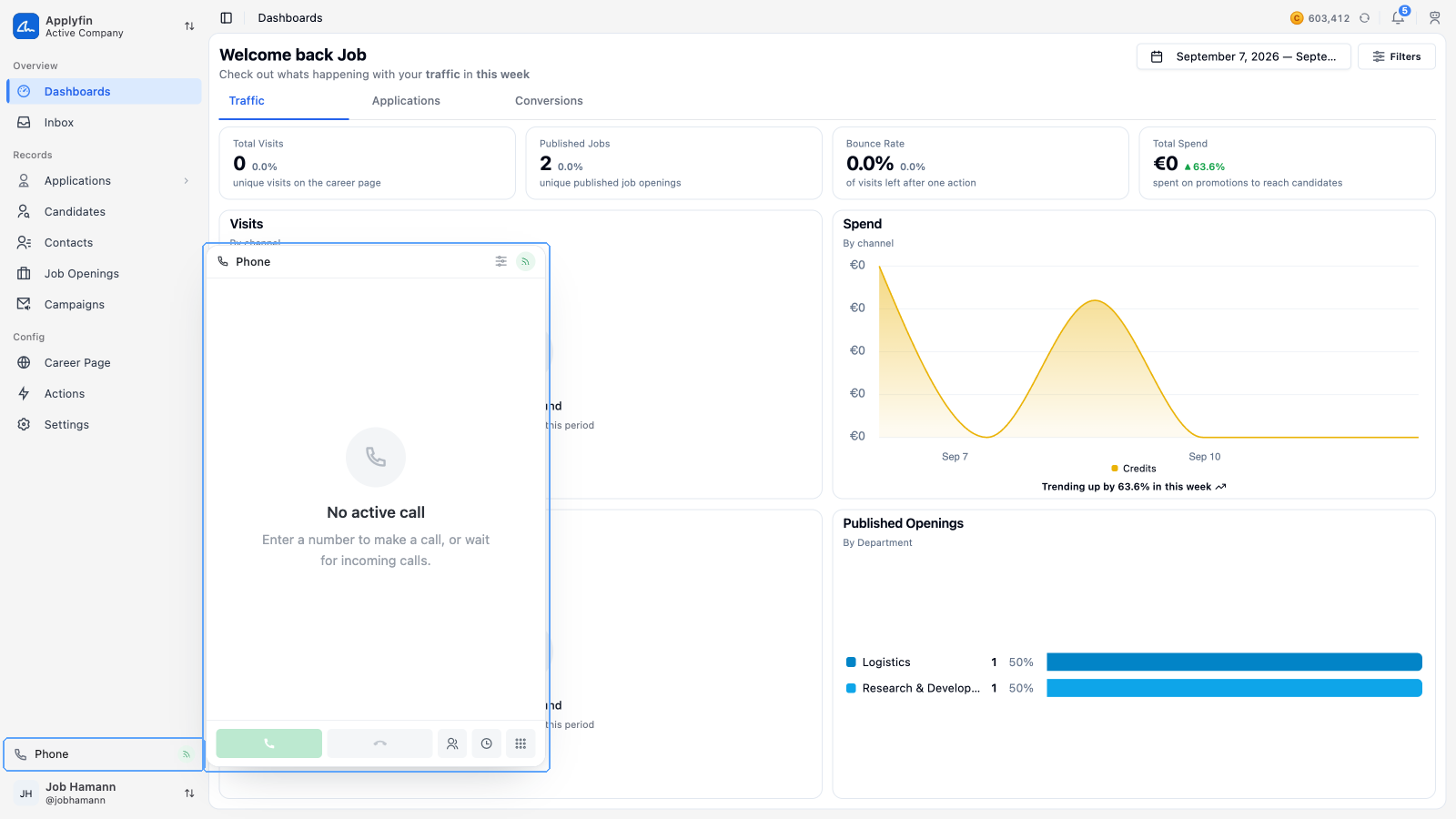
To call a contact, use Phone in the sidebar or the dial button on their record.
- Open the softphone in the sidebar.
- Select Contacts and search by name, or select Keypad and enter a number.
- Select Call.
The panel shows Calling…, then Connected once they answer.
Call controls
The call controls are Mute, Speaker, Hold, Record and Keypad. Record becomes Stop while recording.
Audio settings at the top of the panel lets you pick the Microphone and the Speaker, with a Level meter and an Output volume slider.
An incoming call offers Decline and Accept. The indicator in the header reads Registered with PBX, Connecting to PBX… or Not connected to PBX.
Reading call history
To find a call that was made, open the phone calls list.
- Open Inbox in the sidebar, under Overview.
- Select the list title and pick Phone Calls.
- Search by phone or contact.
- Filter on Status or User, or sort by Created or Duration.
A call shows its Direction, Duration, Extension and Contact, and its Status can be changed by hand.
Statuses run Initiated, Calling, Ongoing, Completed, Missed, Cancelled, Rejected, Busy and Failed.
Transcribing a call
To read what was said, generate a transcript of the recording.
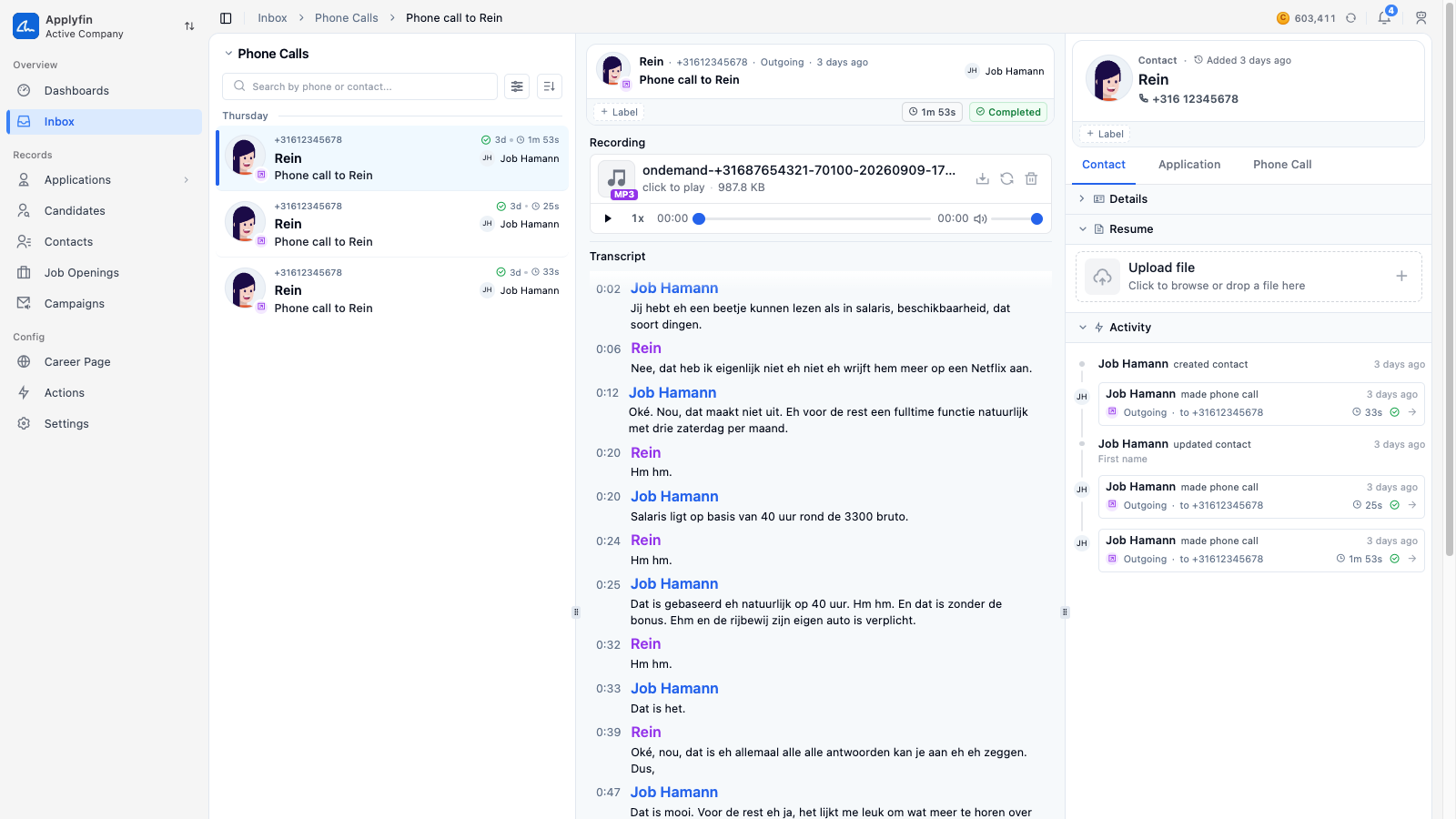
- Open Inbox in the sidebar, pick Phone Calls from the list title, and open the call.
- Under Transcript, select Generate.
The transcript appears with a timestamp and a speaker for each line. Select a line to play the recording from there.