

Views
A view is a saved list. It keeps the filters, the sort, the grouping and the visible columns you set, and it appears in the sidebar under the record it belongs to.
A view lets you come back to a list you filtered, without setting the filters again. Applications, Contacts, Talent Pools and Job Openings each support them. Every view sits under its own record in the sidebar, with an All entry at the end for the full list.
Relations
- Application, Contact, Talent Pool, Job Opening: the four lists that carry views.
- Label — a view can filter on one, and a board can group by one.
- Stage — a board saved while grouped by stage reopens that way.
List and Kanban
Applications, contacts and job openings can be shown in two ways.
- List — rows and columns.
- Kanban — cards in columns, grouped by a field you pick.
Select List or Kanban above the list to switch. Talent pools are shown as a list only.
Choosing columns
To decide what a list shows, pick its columns.
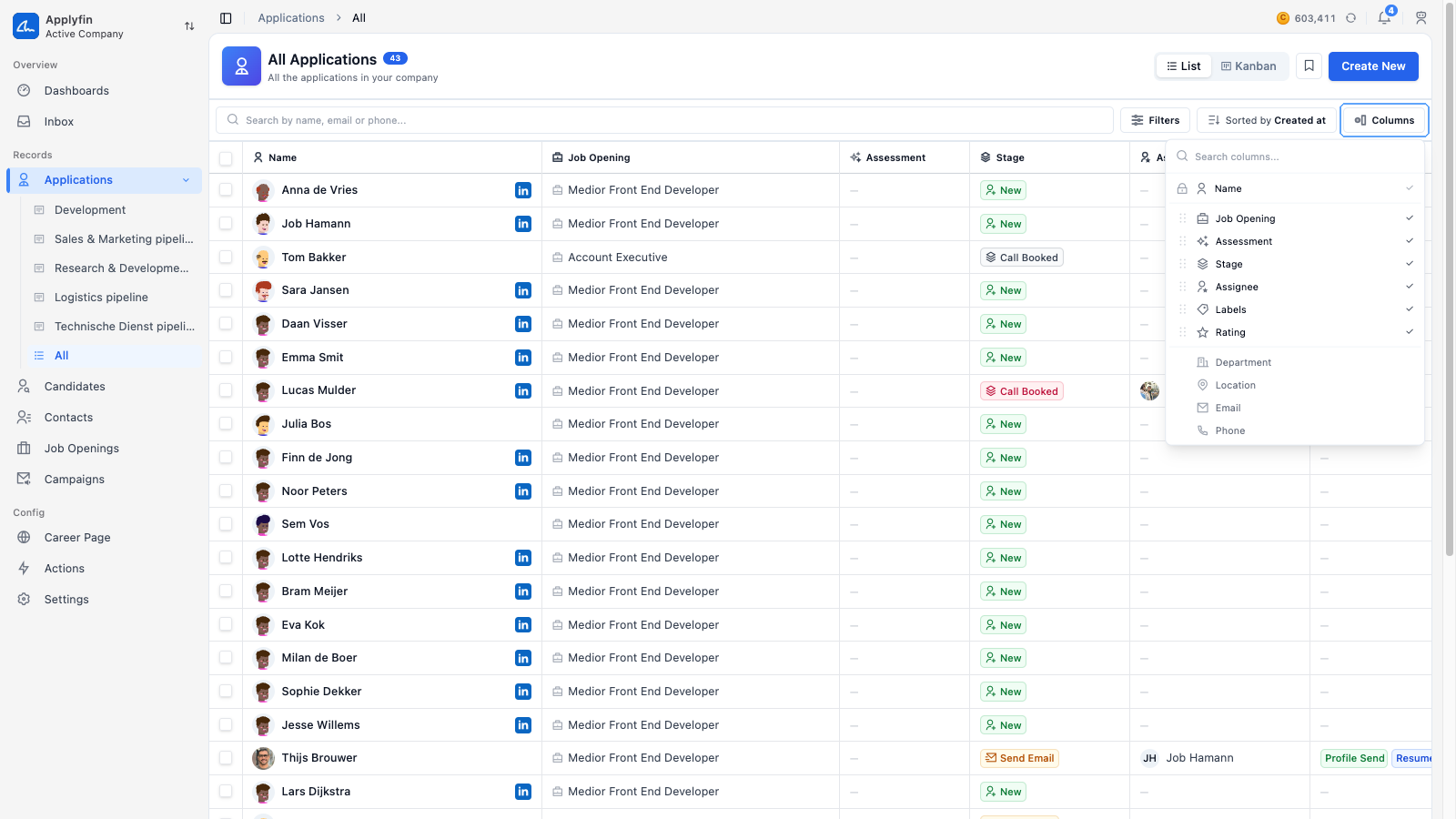
- Open a record from the sidebar, for example Applications, and select List.
- Select Columns.
- Search for a column.
- Turn on the ones you want.
The first column is locked and always shown. The default columns differ per list.
Using the Kanban board
To choose what each column of the board means, change the grouping.
- Open a record from the sidebar, for example Applications, and select Kanban.
- Select Group by.
- Pick the field.
Each value of that field becomes a column.
Saving a view
To reopen the same list later, save it as a view.
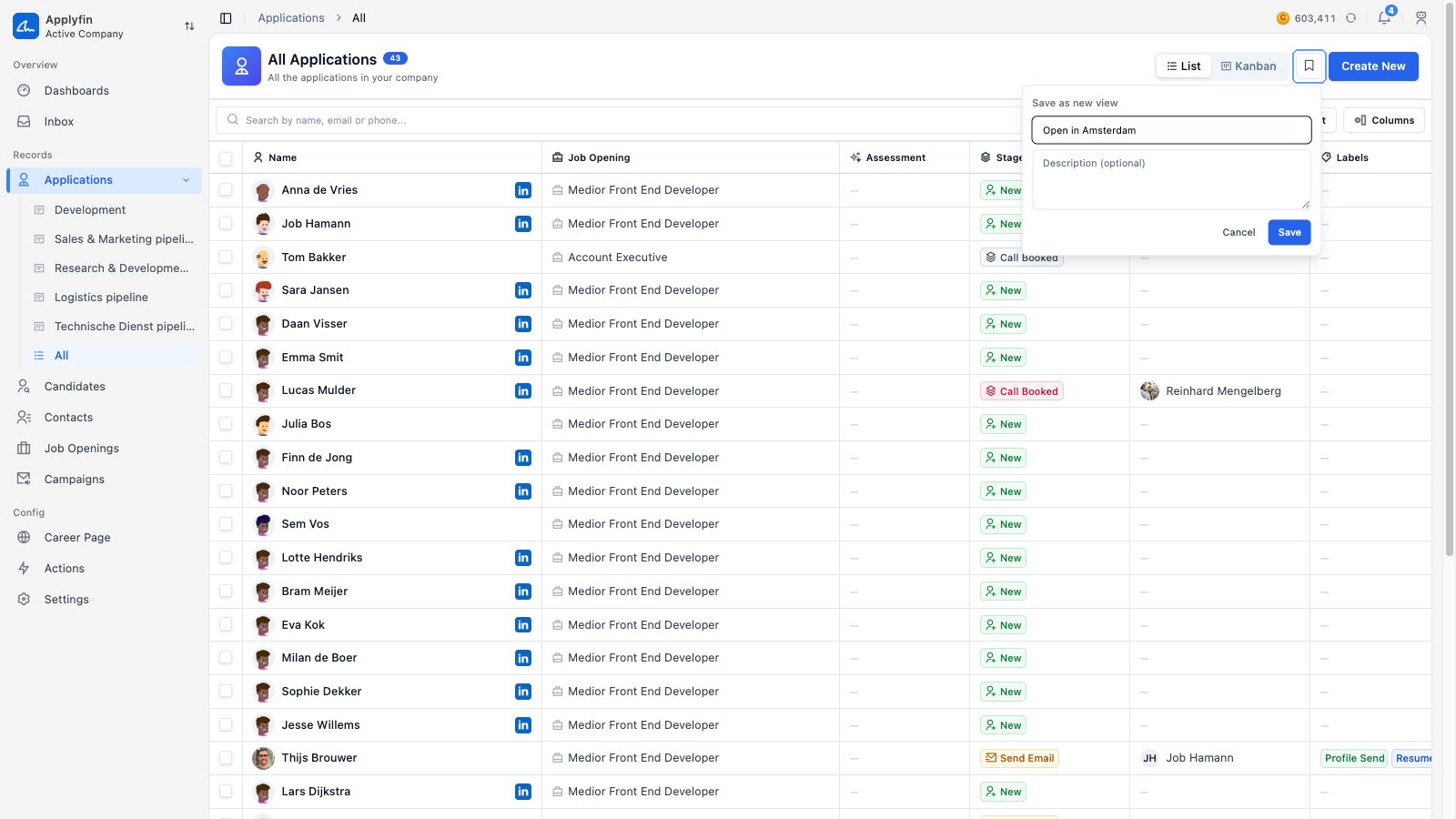
- Set the filters, sort, grouping and columns you want.
- Select the bookmark icon.
- Fill in the View name under Save as new view.
- Write a Description.
- Select Save.
The view appears in the sidebar under its record, and opens with everything you set.
Updating a view
To change a view you already saved, update it from the view itself.
- Open the view from the sidebar.
- Change the filters, sort, grouping or columns.
- Select the bookmark icon.
- Select Save under Update view.