

AI Assessment
An assessment is the AI's judgment of a person against a job opening's Assessment Criteria. You read it in the Assessment section on the talent pool member and on the application. It gives a score out of 100, plus a match level and a reason for every criterion.
The assessment scores a profile automatically, before anyone has read it. It does not replace the evaluations users fill in, which record what a user concluded after speaking to the person. A job opening with no assessment criteria produces no assessment at all.
The profile it judges comes from the person's LinkedIn profile, filled in by enriching the contact. A contact without a LinkedIn Profile cannot be enriched, so there is nothing to assess.
Relations
- Job opening — its Assessment Criteria are what the assessment judges against.
- Department — holds the Default Assessment Criteria every new job opening starts from.
- Talent Pool member: a member of a talent pool with a job opening is assessed against that job. There is one assessment per person per job opening, shared by every talent pool member for that pair.
- Application: shows the same assessment as the talent pool member.
- Evaluation — what users record themselves, next to the assessment.
Adding criteria
To have the AI judge applications for one role, set that role's criteria.
- Open the job opening and select Requirements.
- Under Assessment Criteria, select Add Assessment Criterium.
- Fill in the Assessment Criterium and its Description. Both are required.
- Set Importance: Minimal, Low, Moderate, High or Critical.
- Tick Confirm this criteria during the assessment to have the agents confirm it with the contact.
- Select Save Criteria.
Applications for this role are now scored against the criterium.
Reading an assessment
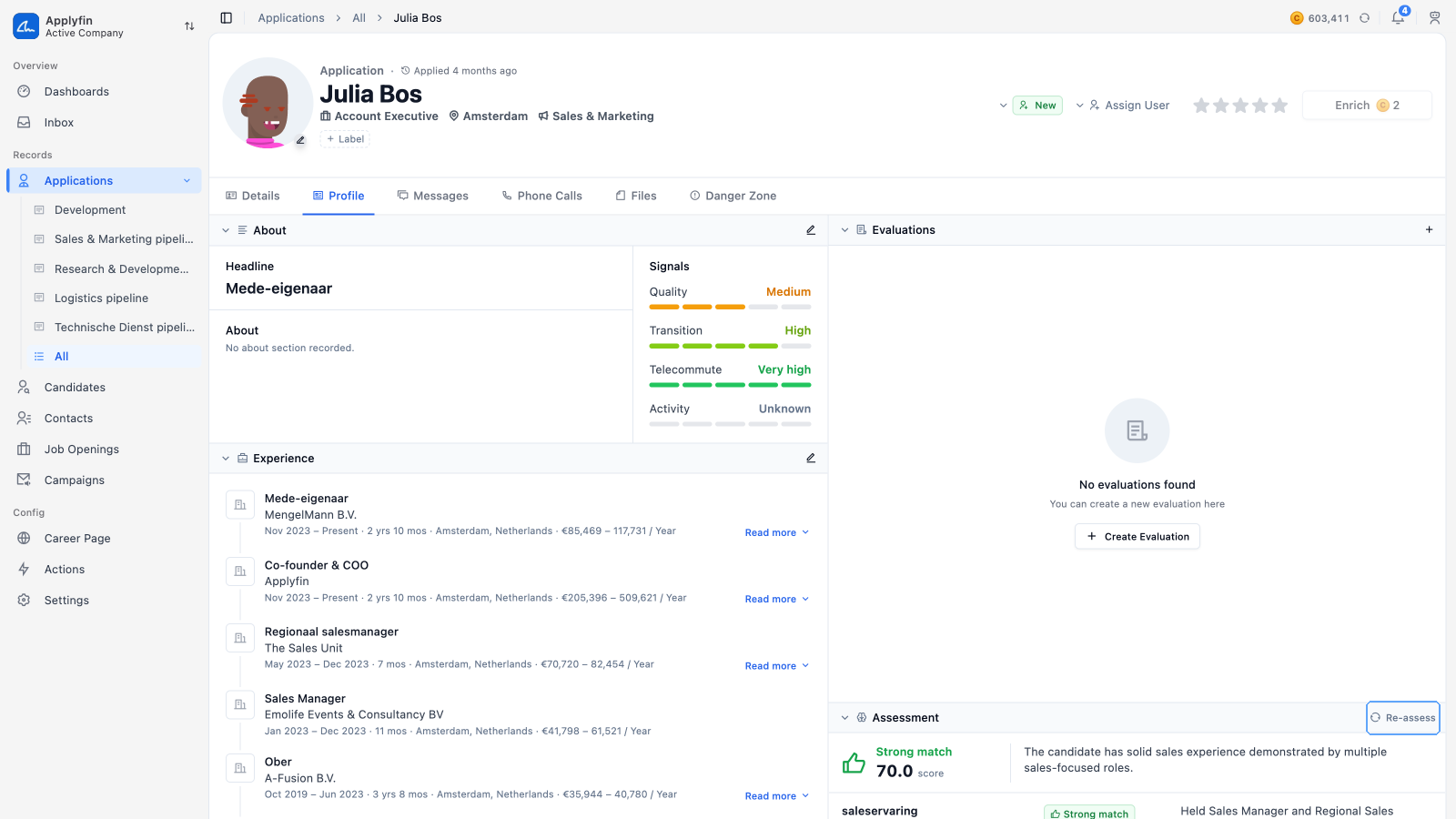
To see how well someone fits before you read their profile, read the assessment.
- Open the member or the application.
- Select Profile.
- Read the score and the match at the top of the Assessment section.
- Read each criterion beneath it, with its importance, its match and the reason the AI gave.
Match levels
Each criterion gets one of these.
- No match — the profile shows the opposite.
- Weak match — the profile barely shows it.
- Moderate match — the profile partly shows it.
- Strong match — the profile clearly shows it.
- Very strong match — the profile shows more than the criterion asks.
A criterion the profile says nothing about reads No evidence.
Running an assessment again
Select Re-assess in the Assessment section to score the profile against the criteria again. The section reads In progress while it runs.