

Feeds
A feed distributes job openings to a channel on its own terms. Feeds are set up under Settings > Feeds, and a feed opens on Settings with its own Promotions alongside.
A feed keeps a channel supplied with whatever is open. A promotion buys one listing for one role. That is the difference, and it is why a feed carries its own price, its own job limit and its own publishing duration.
Relations
- Job opening — what a feed distributes.
- Promotion — the promotions running through the feed.
- Application — what arrives through the channel a feed supplies.
- Balance — a managed feed is paid from it.
Feed types
- Managed — pre-configured by Applyfin. Ready to use without any setup.
- Contract — bring your own contract. Connect an existing job board agreement.
A managed feed has a fixed price, and that price is deducted from your balance. A contract feed has a variable price you enter yourself for accurate cost calculation, and it is not deducted from your balance.
Creating a feed
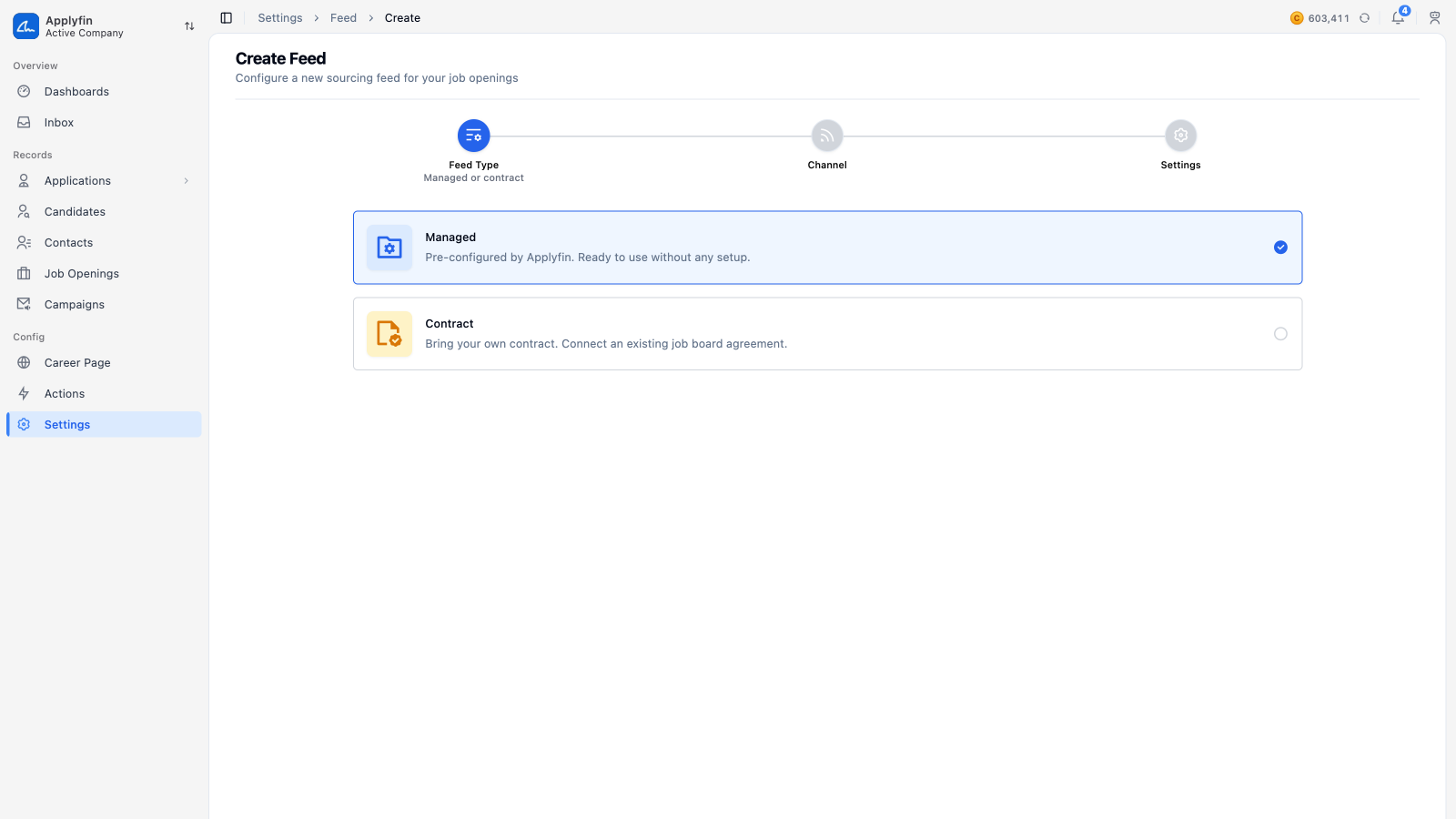
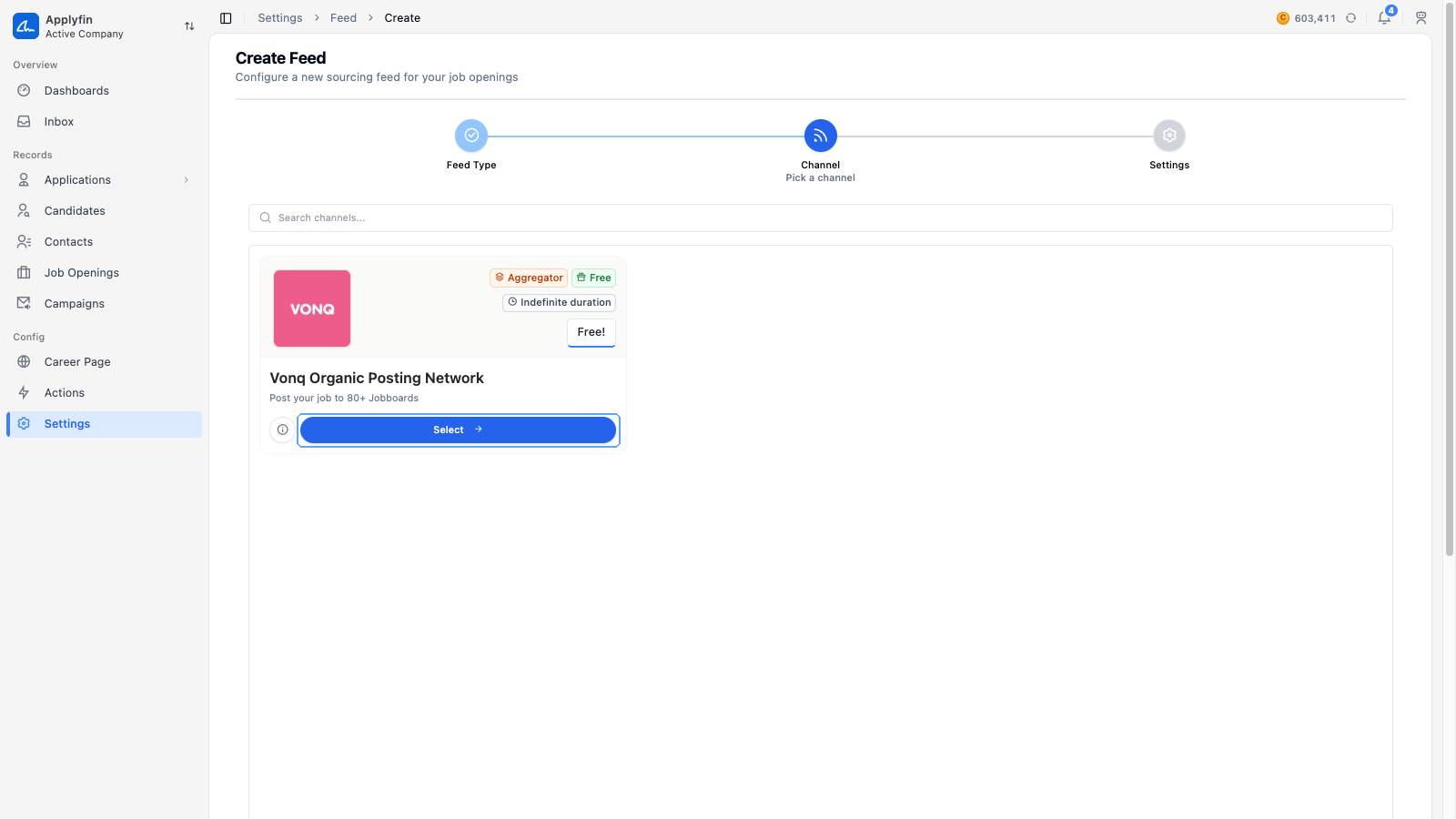
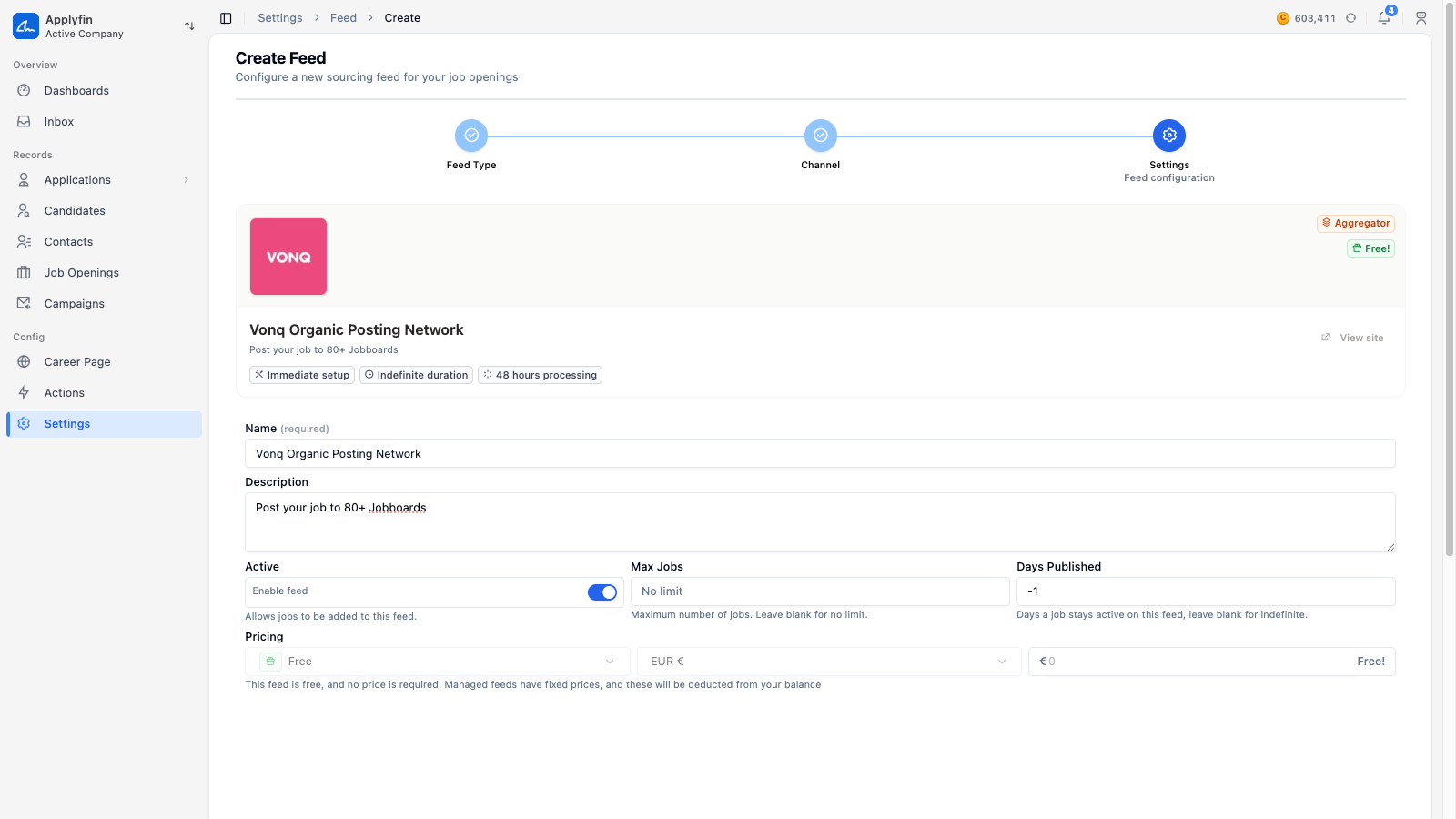
To keep a channel supplied with your open roles, create a feed.
- Open Settings > Feeds and select Create New.
- On Feed Type, pick Managed or Contract.
- On Channel, search for the channel.
- Select the channel.
- On Settings, fill in the Name and a Description.
- Turn on Active to allow jobs to be added to the feed.
- Set Max Jobs, or leave it blank for no limit.
- Set Days Published, or leave it blank for indefinite.
- For a contract feed, set the Pricing: the medium, the currency and the amount.
- Fill in the channel's Authentication fields.
- Select Create Feed.
The feed appears under Settings > Feeds, and job openings can be promoted through it.
Pricing mediums
The medium is how the channel charges, and it decides what the price is per.
- Free — no charge.
- CPC — per click on the listing.
- CPA — per application.
- Slot — per slot.
- Day, Month, Year — per day, month or year.
Reading the feed list
The list shows the Name, the Type, the Status, the Price, the Jobs, the Applications and the Duration. Created can be added.
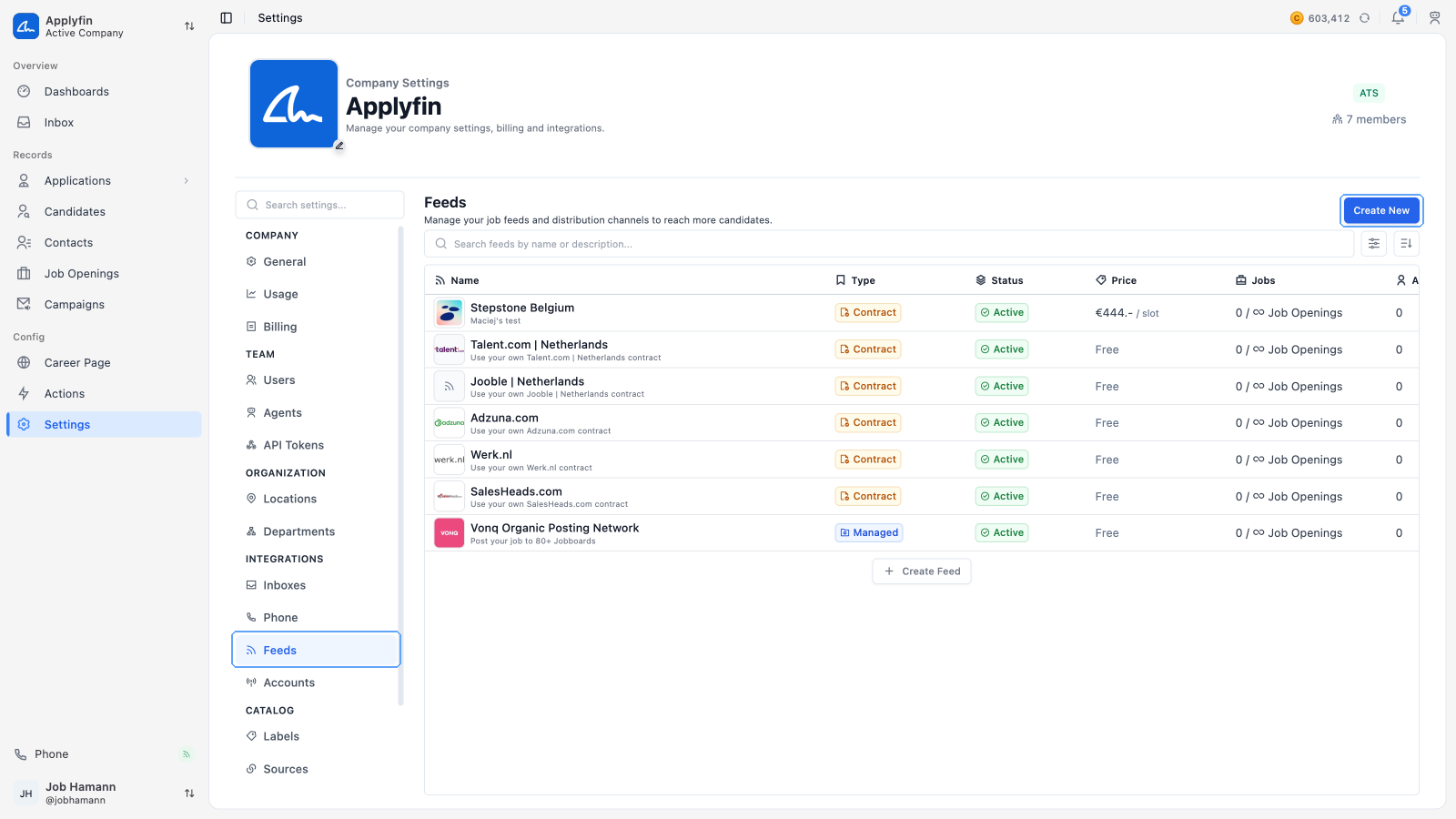
A feed is Active, Inactive or Error. The Jobs column shows how many jobs are in the feed and the limit you set, and the header shows how many applications the feed has brought in.
To find a feed in the list, filter it.
- Open Settings > Feeds.
- Search by name or description.
- Filter on Type or Medium.
Reading a feed's promotions
To see which roles are in a feed, open its promotions.
- Open Settings > Feeds and select the feed.
- Select Promotions.
- Search by name, or sort by Created At, Updated At or Status.
The table lists each Job Opening with its Department & Location, Status, dates, Price and Budget.